
How to Access the n8n Cloud Console
n8n Cloud has two separate areas you’ll work in: your instance and the Cloud console (Admin Panel in earlier versions). It’s easy to confuse the two, especially when you first need to update n8n or check your subscription.
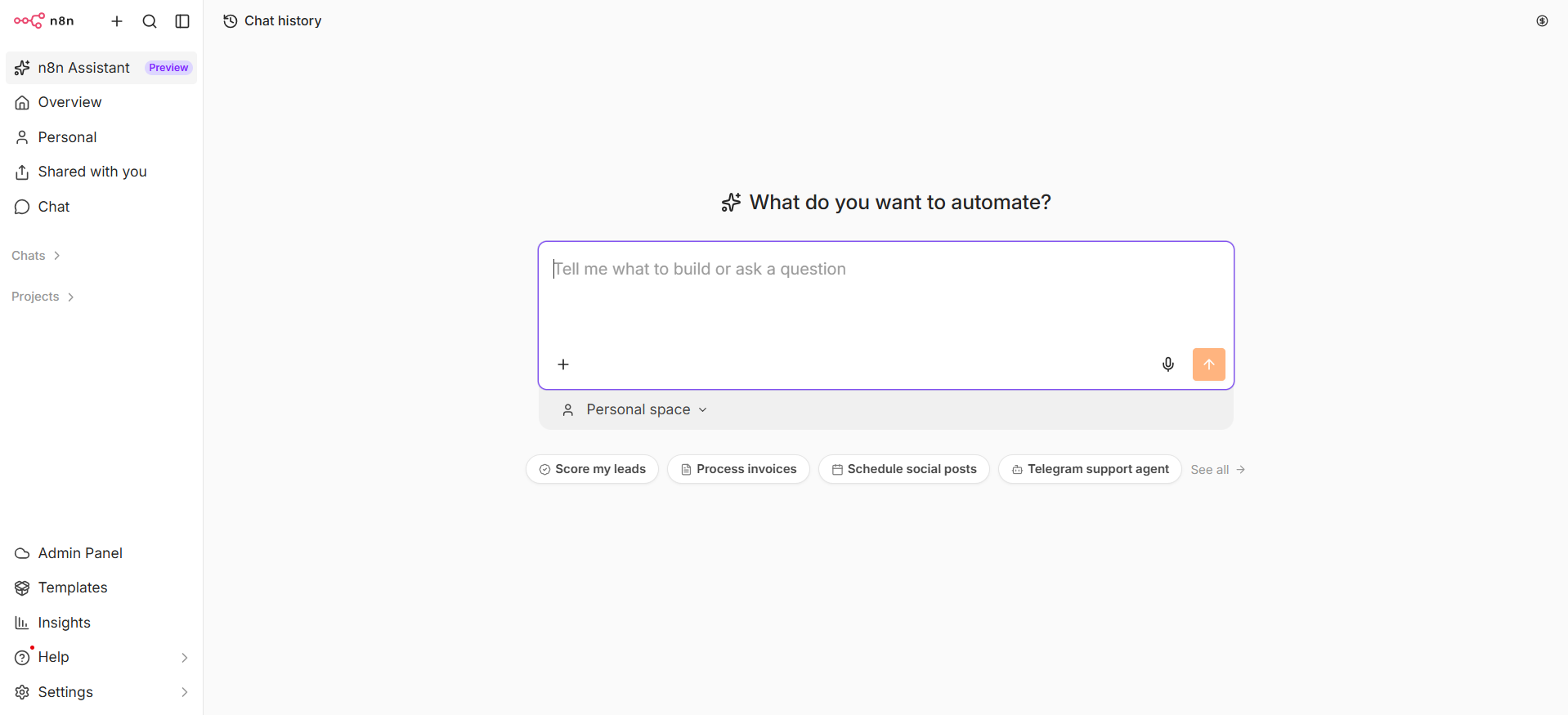
Your instance is your n8n environment, where your workflows run. You work with it through the editor - the interface where you build workflows, manage credentials, and view executions.
n8n instance:
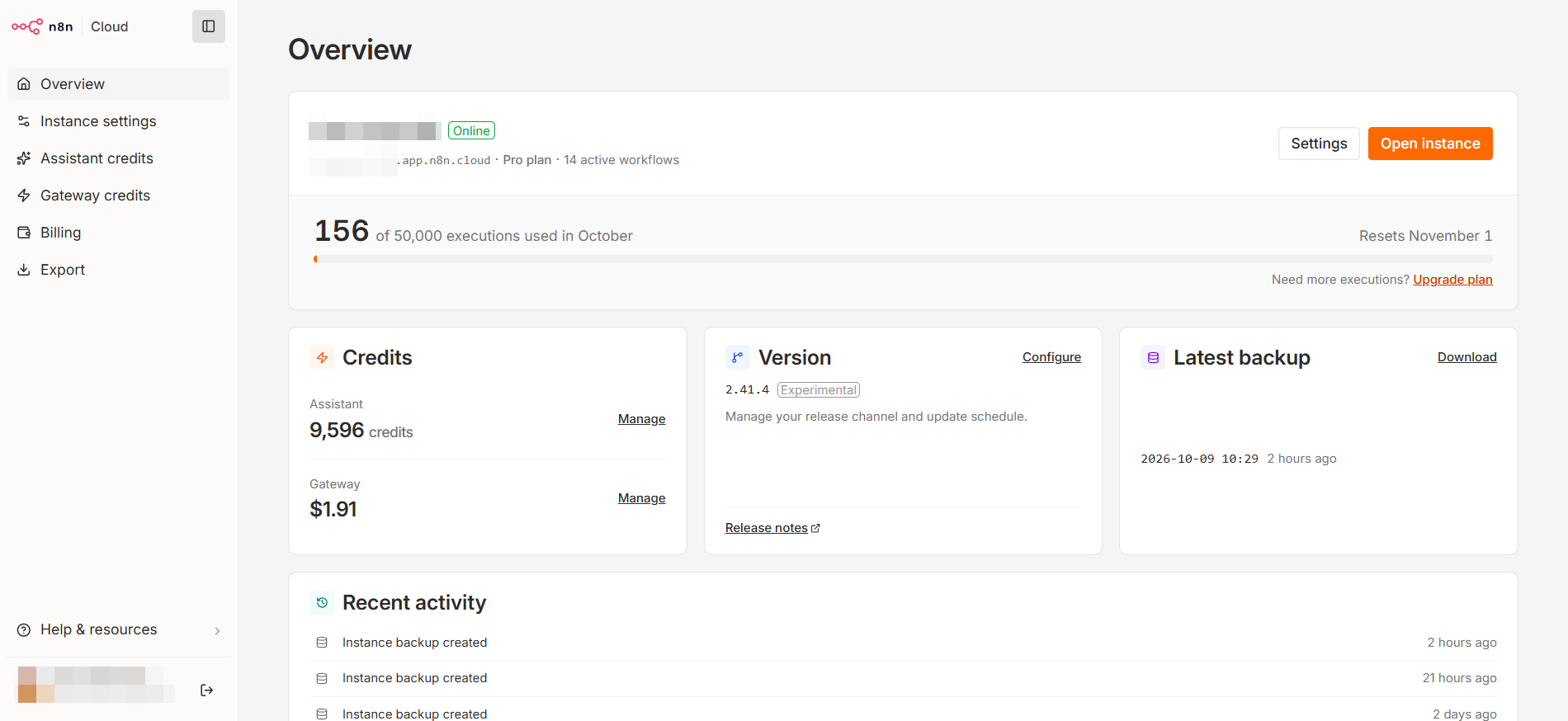
The Cloud console is where the instance owner manages the instance itself, including version updates, plan details, and billing.
n8n Cloud console:
As the instance owner, you can move between the two:
select Cloud console (or Admin Panel in earlier versions) in your instance’s left sidebar to open the console;
to return to your instance, select Open instance on the console’s Overview page.
Who can access the Cloud console?
Only the instance owner can access the Cloud console. Admin and Member accounts don’t have access.
If you aren’t the owner, ask the instance owner to make the changes you need. If ownership needs to change, see Change instance ownership.
Open the Cloud console from the editor
Sign in to your n8n Cloud instance as the instance owner.
In the left sidebar, select Admin Panel to open the Cloud console.
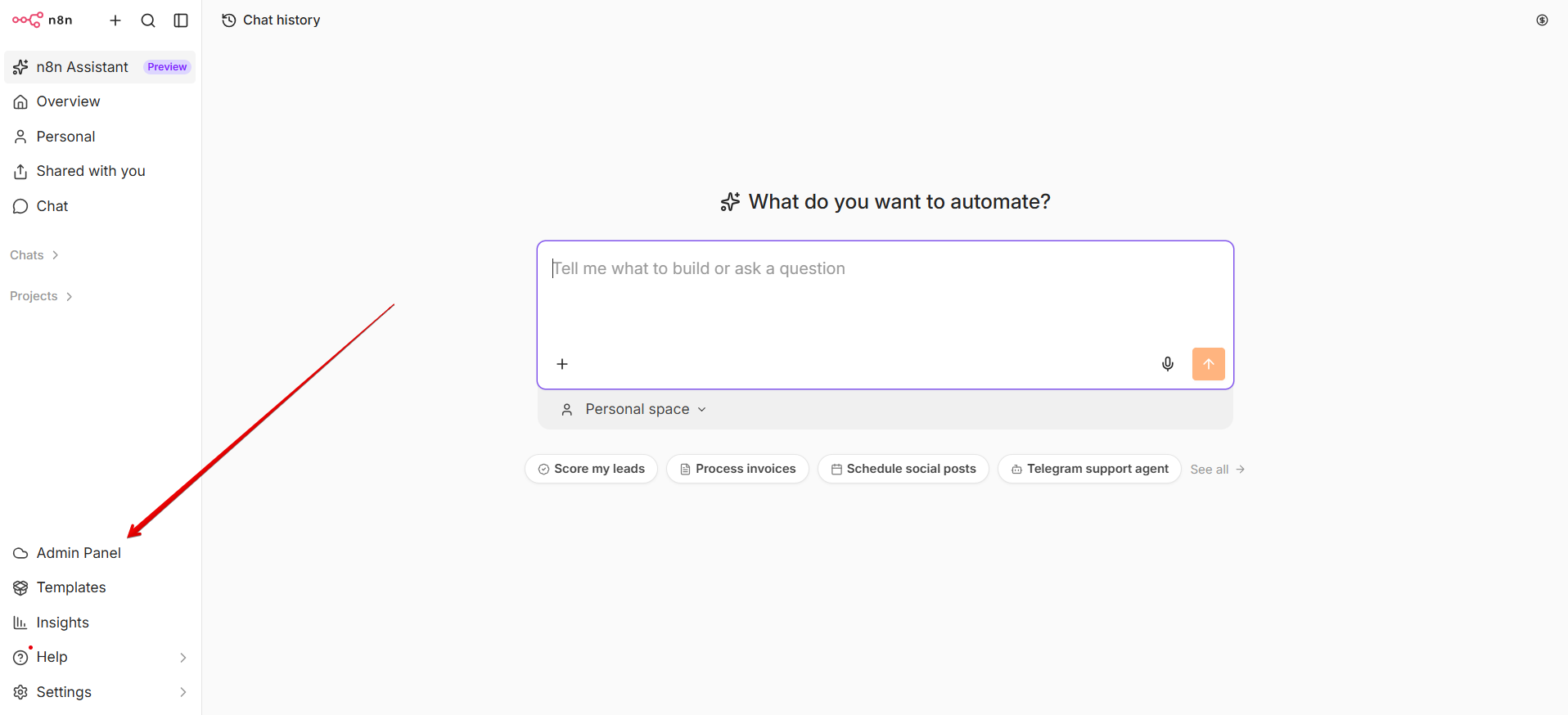
Note: The menu item in the editor may still use the earlier name Admin Panel. If you don’t see it, check that you’re signed in with the instance owner account.
Sign in with a magic link
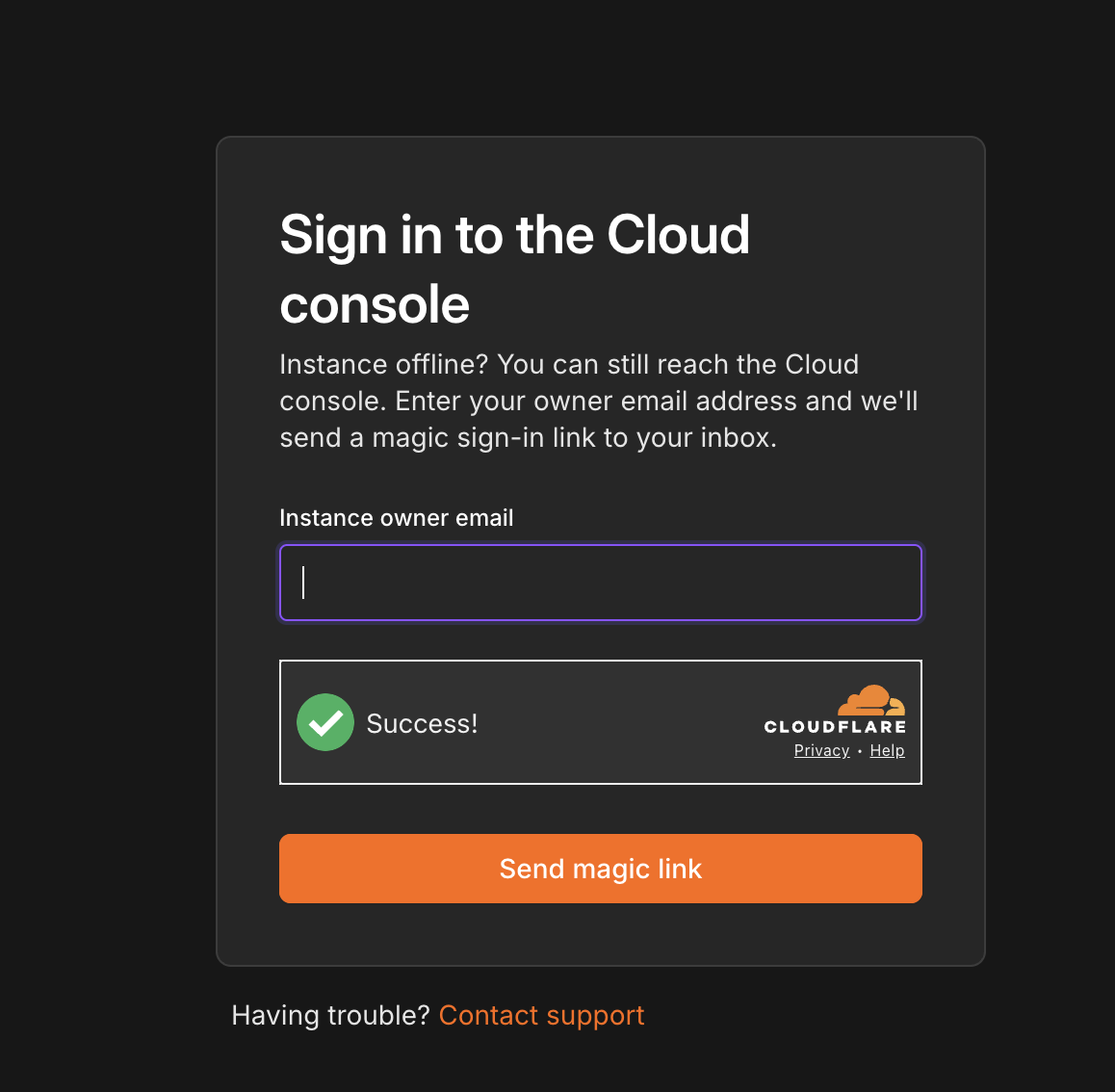
If your instance is offline, you’ve forgotten your password, or you otherwise can’t sign in to your instance, you can still access the Cloud console using a magic link.
Follow the steps to request a magic link, using the instance owner’s email address. You don’t need your instance password to use this method. The article also explains what to check if the email doesn’t arrive.
Next steps
Once you’re signed in to the Cloud console, you can:
Article Last Updated At: 2026-10-22T07:53:24.271Z