
How do I change my email?
In this article
In this article group
- How To Update To The Latest Stable Version In n8n Cloud
- n8n cloud trial FAQ
- How to Access and Install Verified Community Nodes in n8n Cloud
- How to add or modify execution limits on your Cloud Pro-2 monthly plan
- How to transfer ownership of your n8n instance to another e-mail
- Why didn’t I receive a Magic Link email?
- I have a feature request. Who do I talk to? How can I get this functionality added?
- How to Rename an n8n Cloud Instance
- I want to cancel my paid subscription
- How do I delete my n8n account
- Can you reset my executions?
- How to download workflows from a backup
- 404 page and how to download your workflows when your instance is not available after an expired trial
- How Do I Change My n8n Cloud Plan
- Can I add or reset my n8n Assistant credits?
- I am getting 503 errors on my workspace
- How can I add more workflow executions?
- Can I use my own AI API key on n8n Cloud?
- Why do I have fewer n8n Assistant credits since 1 October 2026?
- Is n8n down?
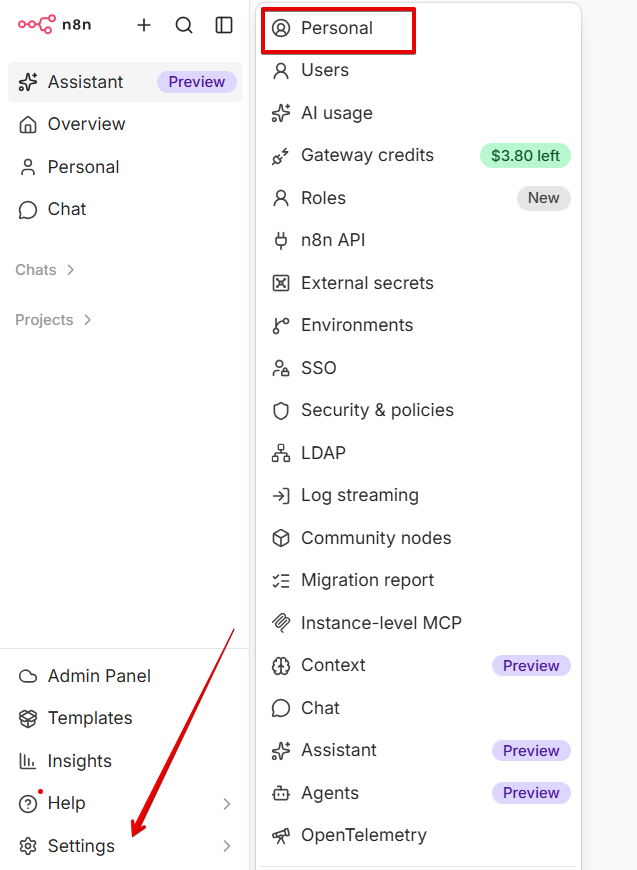
You can change your email address from the Settings panel in the left bottom corner of your instance.
Before you start
The new email address must not:
already belong to another user of this instance
belong to the owner of another n8n Cloud account (if you’re changing the instance owner email)
Steps to follow
Click Settings in the bottom left corner, then select Personal.
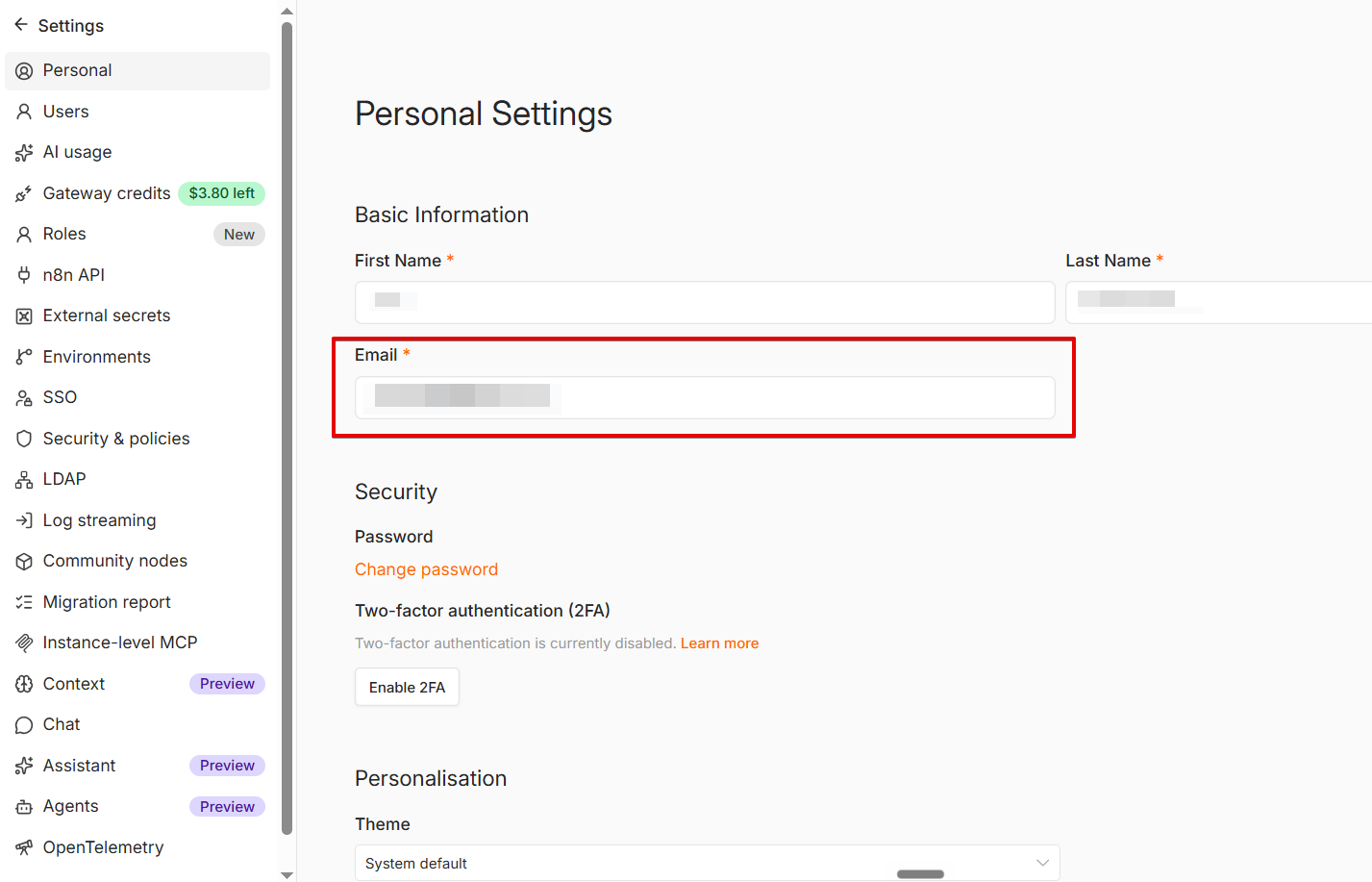
Enter the new address in the Email field and click Save.
When prompted, enter your account password, or your 2FA code if you have 2FA enabled.
A verification email will be sent to your current email address (not the one you’re changing to) from hey@mail.n8n.cloud. Open it and click Change the email. This link is only valid for 20 minutes.
On the page that opens, select Confirm email change.
Once the email has been changed, you’ll need to sign in again on all your sessions.
Note: If you change the instance owner email, this also updates the address where you receive all admin, marketing and billing communications from us.
Article Last Updated At: 2026-10-21T13:51:27.000Z